Task Scheduling
Scheduling Future Processes
AT
atcommand is a command-line utility that is used to schedule a command to be executed at a particular time in the future.- Jobs created with
atcommand are executed only once. - It executes commands at a particular time and accepts times of the form
HH:MMto run a job at a specific time of day. The following expression like noon, midnight, teatime, tomorrow, next week, next Monday, etc. could be used withatcommand to schedule a job.
at [OPTION...] runtime
#press Ctrl+D to save job

at 15:00
warning: commands will be executed using /bin/sh
at> /usr/bin/touch file_created_by_at

#at a specific date
at 'August 20 2022'
#at a specific date and time
at '2:30 August 20 2022'

#using relative dates and time
# run 30 min later
at 'now + 30 minutes'

#run 3 hours later
at 'now + 3 hours'

#run 3 days later
at 'now + 3 days'

#run 3 weeks later
at 'now + 3 weeks'

#run 3 months later
at 'now + 3 months'

#to see which jobs are scheduled to run
atq
20 Wed Nov 17 08:30:00 2021 a aaron
# 20 is job ID

#if we forget what job is supposed to do use -c option and job ID
at -c 20
LESSOPEN=\|\|/usr/bin/lesspipe.sh\ %s; export LESSOPEN
cd /home/aaron || {
echo 'Execution directory inaccessible' >&2
exit 1
}
${SHELL:-/bin/sh} << 'marcinDELIMITER1d46213b'
command1
command2
marcinDELIMITER1d46213b

#to remove a command use atrm with job id
atrm 20
CRONTAB
If you forget syntax of
crontabjust usecat /etc/crontab
- Cron is a utility program that lets users input commands for scheduling tasks repeatedly at a specific time. Tasks scheduled in cron are called cron jobs.
- Cron is a daemon – a background process executing non-interactive jobs. In Windows, you might be familiar with background processes such as Services that work similarly to the cron daemon.
- A cron file is a simple text file that contains commands to run periodically at a specific time. The default system cron table or crontab configuration file is
/etc/crontab.
Cron Limitations:
-
The shortest interval between jobs is
60 seconds. With cron, you won’t be able to repeat a job every 59 seconds or less. -
Centralized on one computer. Cron jobs can’t be distributed to multiple computers on a network. So if the computer running cron crashes, the scheduled tasks won’t be executed, and the missed jobs will only be able to be run manually.
-
No auto-retry mechanism. Cron is designed to run at strictly specified times. If a task fails, it won’t run again until the next scheduled time. This makes cron unsuitable for incremental tasks. (solution → Anacron)
cron [-f] [-l] [-L loglevel]

-f : Used to stay in foreground mode, and don’t daemonize.
-l : This will enable the LSB compliant names for /etc/cron.d files.
-n : Used to add the FQDN in the subject when sending mails.
-L loglevel : This option will tell the cron what to log about the jobs with the following values:
1 : It will log the start of all cron jobs.
2 : It will log the end of all cron jobs.
4 : It will log all the failed jobs. Here the exit status will not equal to zero.
8 : It will log the process number of all the cron jobs.
The crontab (abbreviation for “cron table”) is list of commands to execute the scheduled tasks at specific time. It allows the user to add, remove or modify the scheduled tasks. The crontab command syntax has six fields separated by space where the first five represent the time to run the task and the last one is for the command.
- Minute (holds a value between 0-59)
- Hour (holds value between 0-23)
- Day of Month (holds value between 1-31)
- Month of the year (holds a value between 1-12 or Jan-Dec, the first three letters of the month’s name shall be used)
- Day of the week (holds a value between 0-6 or Sun-Sat, here also first three letters of the day shall be used)
- Command (use whole path to command or script)
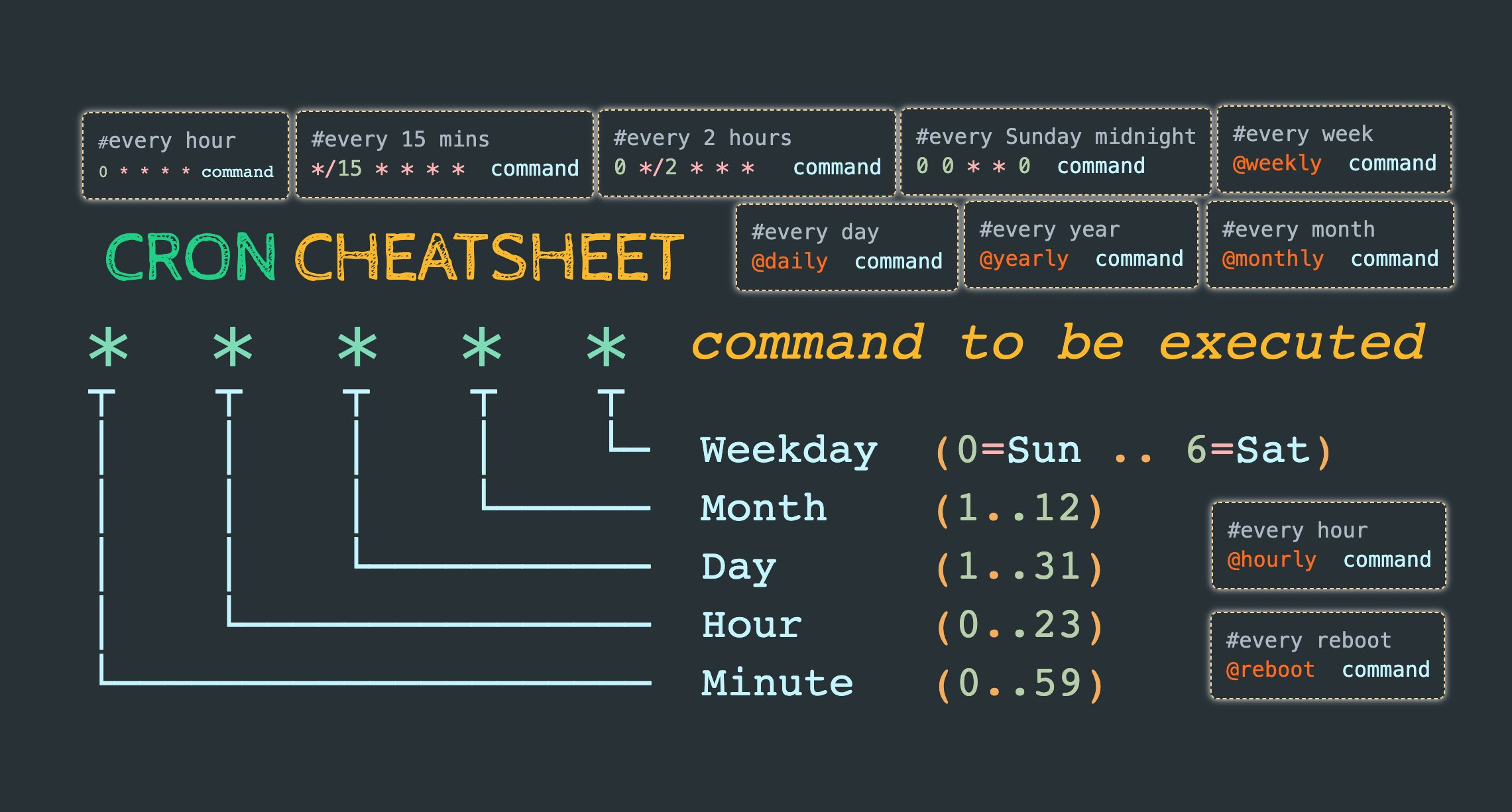
-
*=match all possible values (i.e., every hour) -
,= match multiple values (i.e., 15,45) (for ex a job need to run at 15 and 45 mins) -
-= range of values (i.e., 2-4) (for ex a job need to run at 2,3,4 AM) -
/= specifies steps (i.e., */4) (for ex a job need to run at every 4 hrs)#to use users cron table instead of systemwide crontab -e #view crontab of current user crontab -l #view for root user sudo crontab -l #to edit crontab of different user sudo crontab -e -u userName #to remove crontab of current user crontab -r #to remove crontab of different user sudo crontab -r -u userName#setting cron job using special directories daily = /etc/cron.daily/ hourly = /etc/cron.hourly/ monthly = /etc/cron.monthly/ weekly = /etc/cron.weekly/ #example - if we want to run shellscripts hourly sudo cp schellscripts /etc/cron.hourly/ #make sure script is executable sudo chmod +rx /etc/cron.hourly/shellscript #to remove the job sudo rm /etc/cron.hourly/shellscript
CRON
-
cronis a time-based scheduling utility program. It can launch routine background jobs at specific times and/or days on an on-going basis. -
cronis driven by a configuration file called/etc/crontab(cron table), which contains the various shell commands that need to be run at the properly scheduled times. -
There are both system-wide
crontabfiles and individual user-based ones. -
Each line of a
crontabfile represents a job, and is composed of a so-called CRON expression, followed by a shell command to execute. -
Typing
crontab -ewill open the crontab editor to edit existing jobs or to create new jobs. -
Examples:
- The entry
* * * * * /usr/local/bin/execute/this/script.sh**will schedule a job to executescript.shevery minute of every hour of every day of the month, and every month and every day in the week. - The entry
30 08 10 06 * /home/sysadmin/full-backupwill schedule a full-backup at 8.30 a.m., 10-June, irrespective of the day of the week.
- The entry
-
Each line of the crontab file will contain 6 fields:
Field Description Values MIN Minutes 0 to 59 HOUR Hour field 0 to 23 DOM Day of Month 1-31 MON Month field 1-12 DOW Day Of Week 0-6 (0 = Sunday) CMD Command Any command to be executed 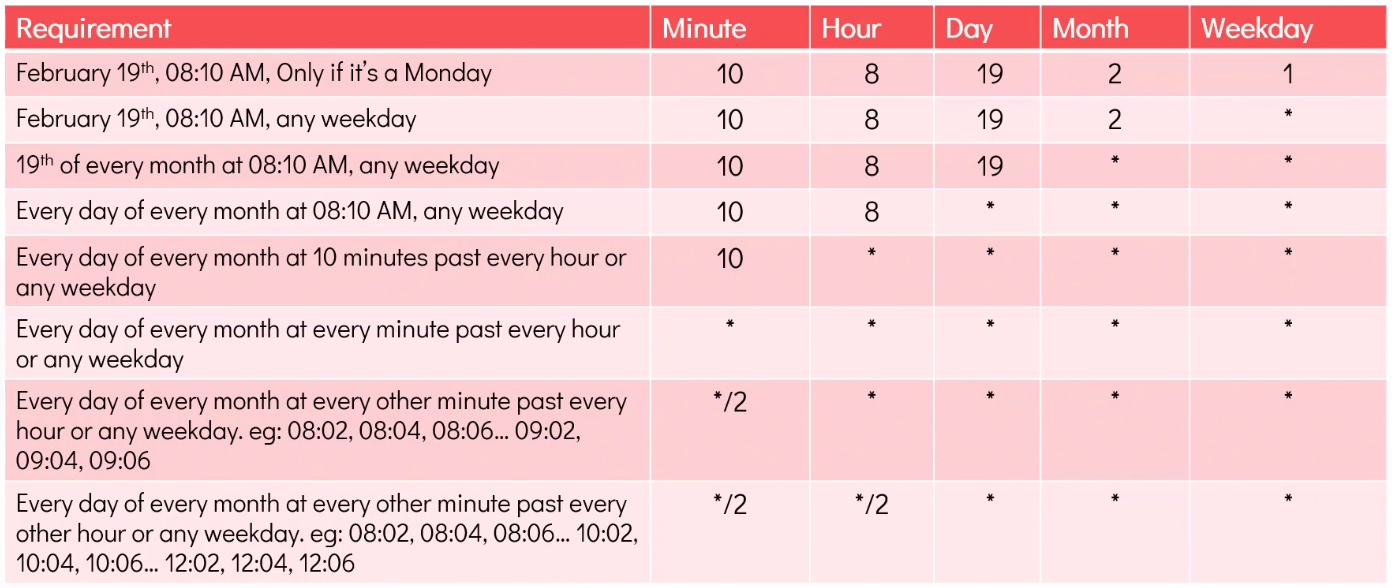
ANACRON
-
Anacron used to execute commands periodically with a frequency specified in days.
-
Its main advantage over cron is that it can be used on a machine which is not running continuously.
-
In cron if a machine is not running on time of a scheduled job then it will skip it, but anacron first checks for timestamp of the job then decides whether to run it or not and if its timestamp is >=n (n is defined number of days) then runs it after a specified time delay.
-
It mainly constitutes of two important Files:
/etc/anacrontab: It contains specifications of job./var/spool/anacron: This directory is used by anacron for storing timestamp files. It represents timestamp for different category of jobs i.e. daily, weekly, monthly, etc.
anacron [-s] [-f] [-n] [-d] [-q] [-t anacrontab] [-S spooldir] [job] anacron [-S spooldir] -u [-t anacrontab] [job] ... anacron [-V|-h] anacron -T [-t anacrontab] f : Used to force execution of the jobs, ignoring the timestamps. u : Only update the timestamps of the jobs, to the current date, but don’t run anything. s : Serialize execution of jobs. Anacron will not start a new job before the previous one finished. n : Run jobs now.Ignore any delay. d : Don’t fork to the background. In this mode, Anacron will output informational messages to standard error, as well as to syslog. The output of jobs is mailed as usual. q : Suppress messages to standard error. Only applicable with -d. V (Use specified anacrontab) : Print version information and exit. h (Use specified anacrontab) : Print short usage message, and exit.\#to schedule a job with anacron we edit file /etc/anacrontab sudo vim /etc/anacrontab \#period in days delay in minutes job-identifier command 3 10 test job /usr/bin/touch /root/anacron_created_this #(3 means every 3 days) #(10 means every job has time diff of 10 mins bcz on the day when machine was powered off maybe 5 to 10 jobs needed to run that day \#but running 5-10 jobs once is not feasiable hence 10 min delay \#job identifier is useful for logging \#to run weekly use either of these 7 10 test job /usr/bin/touch /root/anacron_created_this @weekly 10 test job /usr/bin/touch /root/anacron_created_this \#to run monthly use @monthly 10 test job /usr/bin/touch /root/anacron_created_this \#to verify if the syntax of anacron is correct or not use anacron -T anacron: Invalid syntax in /etc/anacrontab on line 17 - skipping this line \#no error = correct syntax
CRON vs ANACRON
| Cron | Anacron |
|---|---|
| It’s a daemon | It’s not a daemon |
| Appropriate for server machines | Appropriate for desktop/laptop machines |
| Enables you to run scheduled jobs every minute | Only enables you to run scheduled jobs on daily basis |
| Doesn’t executed a scheduled job when the machine if off | If the machine if off when a scheduled job is due, it will execute a scheduled job when the machine is powered on the next time |
| Can be used by both normal users and root | Can only be used by root unless otherwise (enabled for normal users with specific configs) |
- The major difference between cron and anacron is that
- cron works effectively on machines that will run continuously
- anacron is intended for machines that will be powered off in a day or week.
Delayed or Suspended jobs sleep
-
Sometimes, a command or job must be delayed or suspended.
- Suppose, for example, an application has read and processed the contents of a data file and then needs to save a report on a backup system.
- If the backup system is currently busy or not available, the application can be made to sleep (wait) until it can complete its work.
- Such a delay might be to mount the backup device and prepare it for writing.
-
sleepsuspends execution for at least the specified period of time, which can be given as the number of seconds (the default), minutes, hours, or days. After that time has passed (or an interrupting signal has been received), execution will resume. -
The syntax is:
sleep NUMBER[SUFFIX]... where SUFFIX may be: - `s` for seconds (the default) - `m` for minutes - `h` for hours - `d` for days. -
sleepandatare quite different;sleepdelays execution for a specific period, whileatstarts execution at a later time.
Verify completion of scheduled jobs
-
Every
cron,anacronandatjobs are logged in system.sudo cat /var/log/cron sudo grep CMD /var/log/cron sudo grep anacron /var/log/cron sudo grep atd /var/log/cron