GUI
Graphical Desktop
- You can use either a Command Line Interface (CLI) or a Graphical User Interface (GUI) when using Linux.
- To work at the CLI, you have to remember which programs and commands are used to perform tasks, and how to quickly and accurately obtain more information about their use and options.
- On the other hand, using the GUI is often quick and easy. It allows you to interact with your system through graphical icons and screens.
- For repetitive tasks, the CLI is often more efficient, while the GUI is easier to navigate if you do not remember all the details or do something only rarely.
X Window System and Wayland
- X Window System is loaded as one of the final steps in the boot process. It is often just called X.
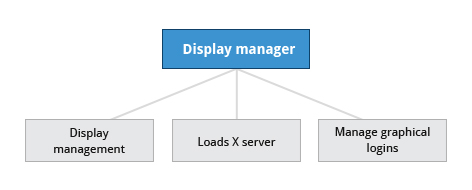
- A service called the Display Manager keeps track of the displays being provided and loads the X server (so-called, because it provides graphical services to applications, sometimes called X clients). The display manager also handles graphical logins and starts the appropriate desktop environment after a user logs in.
- X is rather old software; it dates back to the mid 1980s and, as such, has certain deficiencies on modern systems (for example, with security), as it has been stretched rather far from its original purposes.
- A newer system, known as Wayland, is gradually superseding it and is the default display system for Fedora, RHEL 8, and other recent distributions. For the most part, it looks just like X to the user, although under the hood it is quite different.
Key differences between Wayland and X11:
| Aspect | Wayland | X Window System (X11) |
|---|---|---|
| Architecture | A client (application) communicates directly with a compositor (display server and window manager combined). | Uses a more complex client-server model where the X server acts as a middleman between applications and the hardware. |
| Performance | Simpler and more modern design results in reduced latency, less screen tearing, and smoother graphics. | Due to its age and numerous extensions, X11 can be less efficient and may show performance issues like screen tearing. |
| Security | Designed with stronger security, isolating applications from each other to prevent them from “snooping” on other windows or input. | Originally lacked modern security features, making it vulnerable to certain attacks. |
| Hardware | Optimized for modern graphics hardware and higher-resolution displays (high-DPI). | Not built with modern hardware in mind, which required many extensions and workarounds. |
| Compatibility | Most legacy applications still need to run through a compatibility layer called XWayland to function correctly. | Fully backward-compatible with older X11 applications, which run natively. |
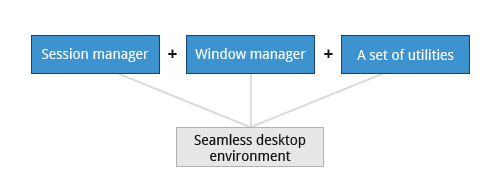
- A desktop environment consists of a session manager, which starts and maintains the components of the graphical session, and the window manager, which controls the placement and movement of windows, window title-bars, and controls.
- Although these can be mixed, generally a set of utilities, session manager, and window manager are used together as a unit, and together provide a seamless desktop environment.
- If the display manager is not started by default in the default runlevel, you can start the graphical desktop different way, after logging on to a text-mode console, by running startx from the command line.
- Or, you can start the display manager (gdm, lightdm, kdm, xdm, etc.) manually from the command line. This differs from running startx as the display managers will project a sign in screen.
GUI Startup
- When you install a desktop environment, the X display manager starts at the end of the boot process.
- It is responsible for starting the graphics system, logging in the user, and starting the user’s desktop environment.
- The default display manager for
- GNOME is called gdm
- lightdm (used on Ubuntu before version 18.04 LTS) and
- kdm (associated with KDE).
Basic Operations
- Switch between the Icons and List formats, either by clicking the familiar icons in the top bar, or you can press
CTRL-1orCTRL-2respectively. - Arrange the files and directories by name, size, type, or modification date for further sorting. To do so, click View and select Arrange Items.
- Show hidden files (sometimes imprecisely called system files), which are usually configuration files that are hidden by default and whose name starts with a dot. To show hidden files, select Show Hidden Files from the menu or press
CTRL-H - The shortcut key to get to the search text box is CTRL-F. You can exit the search text box view by clicking the Search button or CTRL-F again.
- Another quick way to access a specific directory is to press CTRL-L, which will give you a Location text box to type in a path to a directory.
- Refine your search beyond the initial keyword by providing drop down menus to further filter the search.
- Based on Location or File Type, select additional criteria from the drop down.
- To regenerate the search, click the Reload button.
- To add multiple search criteria, click the + button and select Additional Search Criteria.
- Find the latest modified file in /var/log.